How to Scan Receipts on Your Phone
 Scanpaper Team 8 min read
Quick answer
To scan receipts on iPhone, open Notes, tap the camera icon, choose Scan Documents, and photograph each slip. On Android, open Google Drive, tap the + button, and select Scan. For multiple receipts in one PDF, scan them all in a single session before saving. A scanner app like Scanpaper handles both platforms in one go, without an account.
In this guide
Physical receipts pile up and fade. Thermal paper becomes unreadable in 6 to 12 months, often well before you need it for a tax return, expense report, or warranty claim. The fix: scan receipts to your phone as PDFs while they’re still crisp. The scan doesn’t fade.
This guide covers the native methods on iPhone and Android (no extra app needed for a single receipt), how to combine multiple receipts into one PDF, and when a scanner app is worth using.
Scanning Receipts on iPhone
Your iPhone has two built-in document scanners: one in the Notes app and one in Files. Both produce PDFs.
Using Notes:
- Open the Notes app. Create a new note or open an existing one.
- Tap the attachment icon above the keyboard, then choose Scan Documents.
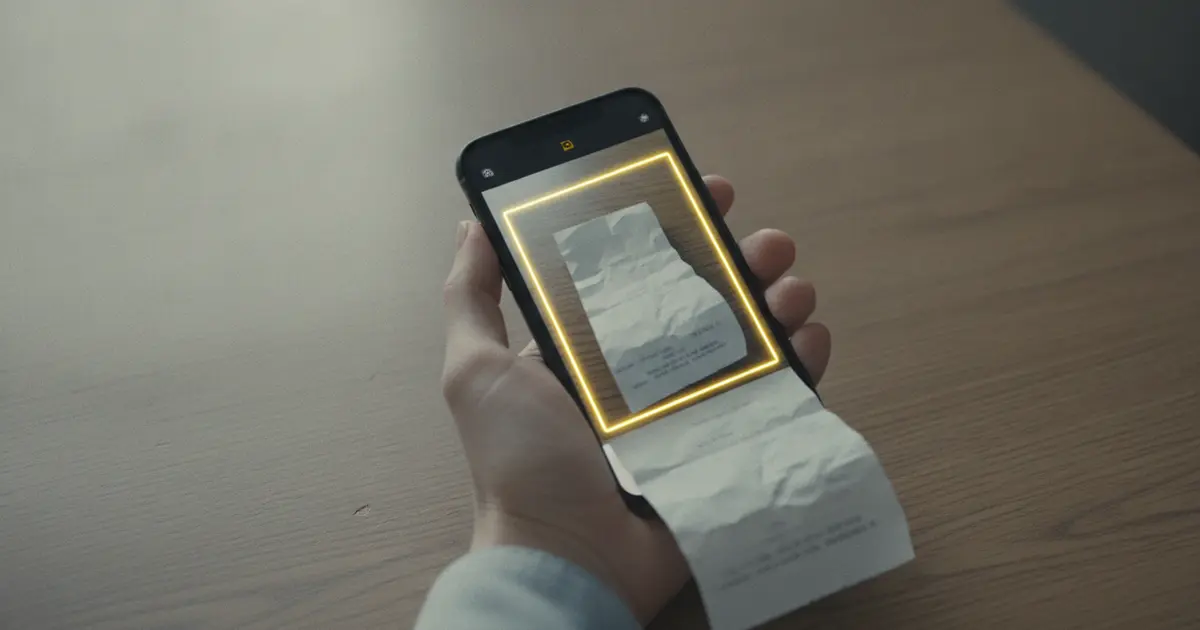
- Point the camera at the receipt. A yellow outline locks onto the edges automatically.
- The shutter fires on its own when the image is steady, or tap it manually.
- Photograph additional receipts before tapping Save. Each capture becomes a page in the same PDF.
- Tap Done, then tap the scan and use the Share button to send it to Files.
Using Files:
Open Files, tap Browse, tap the three-dot icon at the top right, and choose Scan Documents. The same camera view opens. It saves directly to whichever folder you’re already in, which makes this method useful when you’ve already set up a Receipts folder.
Thermal receipt paper prints text using heat-sensitive dye that begins to fade within 6 to 12 months at room temperature. Storage in wallets or glove boxes, near heat sources, or under direct sunlight accelerates this: some receipts become illegible within 3 to 4 months. The dye also reacts to pressure and heat, which is why a receipt stored against a card in a wallet often develops dark streaks.
For scanning, lay the receipt flat on a neutral-coloured surface and use natural light or indirect artificial light. The phone’s built-in flash creates glare on thermal paper’s glossy surface and washes out the text. Switching to the Auto or B&W filter in any scanner app applies contrast enhancement that recovers faded text visually.
Scan as soon as you get the receipt, before degradation starts, and the scan will stay readable long after the paper itself is gone.
A few more tips for thermal receipts:
- If the receipt curls, lay it on a flat surface and press the edges flat for a few seconds before scanning.
- Use the No Shadow filter if one side of the receipt is shaded by your hand.
- For long supermarket receipts, scan from the top down in sections. The scanner stacks them as separate pages in the same document.
Scanning Receipts on Android
Google Drive is the native receipt scanner on Android. It doesn’t require an extra app and saves the result as a PDF to your Drive automatically.
- Open the Google Drive app.
- Tap the + button at the bottom right, then tap Scan.
- Hold the phone over the receipt. Drive shows a live crop overlay.
- Tap the shutter to capture. Use the crop handles to adjust the border if needed.
- Tap the check button. The PDF saves to your Drive.
Samsung devices have a Scan Documents mode inside the native Camera app. Swipe to More in the camera modes and look for Scan. The result saves to your Gallery or Files.
Pixel phones can scan via a Drive shortcut on the home screen or through Google Lens (long-press the camera button), which captures and crops a receipt in one tap.
One limitation of the Google Drive method: it creates a separate PDF for each receipt by default. That’s fine for single slips. For multi-receipt batches, see the next section.
Combining Multiple Receipts Into One PDF
Expense claims, insurance submissions, and end-of-year tax folders usually need one PDF, not 15 separate files. Three approaches work here.
Scan all receipts in one session (the simplest method):
On iPhone, don’t tap Done between receipts. Scan the first one, then point the camera at the next without stopping. Notes stacks them all as pages in a single PDF. Tap Done when you’ve finished the batch.
The same approach works in a scanner app on both iOS and Android: scan everything in one session and the whole batch is one document.
Merge files you’ve already scanned separately:
The free Merge PDF tool at scanpaper.app combines up to 5 PDFs into one in your browser, with nothing uploaded to a server. Add the files, reorder them if needed, then download the merged result.
For the full walkthrough on iPhone multi-page scanning, see How to Scan Multiple Pages Into One PDF on iPhone.
Organizing Scanned Receipts
A folder full of files named “Scan 2026-11-04.pdf” isn’t much better than a shoebox of paper. A simple naming convention fixes that.
File naming: date first, then vendor, then amount: 2026-11-05_Target_42.80.pdf. The date-first format sorts automatically in any file manager and includes everything you need without opening the file.
Folder structure by year and category:
Receipts/2026/BusinessReceipts/2026/MedicalReceipts/2026/Warranty
The IRS generally expects business records for 3 years from the filing date, with some situations requiring 7 years. Medical expense receipts are worth keeping for 7 years if you’re claiming deductions. Warranty receipts: keep for the warranty period plus one year.
On iPhone, create subfolders in the Files app under On My iPhone or iCloud Drive. On Android, do the same in Google Drive or Files by Google. In Scanpaper, you can create folders directly in the app library and move documents into them without leaving the app.
Scanning a Stack of Receipts With Scanpaper
If you’re dealing with more than a handful of receipts, the native phone scanner gets tedious: tap, save, rename, repeat. Scanpaper’s auto-capture and in-session multi-page flow make batch scanning faster.
- Open Scanpaper on your iPhone or Android. Tap the camera button on the main screen.
- Hold the phone over the first receipt. The edge-detection outline appears around the slip.
- Auto-capture fires the shutter when the image is stable. No need to tap.
- Point the camera at the next receipt. It becomes the next page in the same document automatically.
- Keep scanning until you’ve covered the whole stack. Tap Done when finished.
- Name the document something like “2026-11 work receipts” or “IKEA TV warranty”, then tap Save.
The document lands in your library. Tap Share to export as a PDF or save to Files.
Compression is worth using before submitting an expense claim. A single-session PDF of 10 receipts might run 5 to 10 MB at standard quality. The Small export option in Scanpaper trims the file size significantly without making the text unreadable, which helps with email attachment limits and corporate expense portals. See How to Compress a PDF on iPhone for the full breakdown.
For scanning a document and emailing it in one step, see How to Scan and Send a Document by Email.
Related reading: How to Scan Multiple Pages Into One PDF on iPhone · How to Scan and Send a Document by Email · How to Compress a PDF on iPhone
Frequently asked questions
What is the best free way to scan receipts on iPhone?
The Notes app is the simplest free method. Open a note, tap the camera icon, choose Scan Documents, and photograph the receipt. It saves as a PDF you can share directly or store in Files. For multi-page batches or searchable text, a scanner app like Scanpaper handles both and doesn't need an account.
How do I scan receipts on Android for free?
Open Google Drive and tap the + button, then Scan. The camera captures the receipt and saves it as a PDF to your Drive automatically. On Samsung devices, the native Camera app has a Scan Documents mode under More. On Pixel phones, you can scan through Google Drive or use Google Lens for quick captures.
Can I scan multiple receipts into one PDF?
Yes. On iPhone, don't tap Save between receipts in the Notes scanner: each new capture becomes a page in the same PDF. In Scanpaper, keep scanning without stopping and all receipts land in one document. If you've already scanned them separately, the free Merge PDF tool at scanpaper.app/tools/merge-pdf stitches up to 5 PDFs together in your browser.
How long do paper receipts last before fading?
Thermal receipts typically fade in 6 to 12 months at room temperature, faster if kept in a wallet, near heat, or in direct light. Some become illegible within 3 to 4 months. Scan them while the text is still crisp. The Auto or B&W filter in a scanner app can recover contrast on a receipt that's already starting to lighten.
How should I organize scanned receipts?
Name each file with the date, vendor, and amount: 2026-11-05_Target_42.80. Create folders by year and category, such as Business/2026 and Medical/2026. In Scanpaper, you can sort receipts into folders inside the app itself. The IRS generally requires business records for 3 years; keep medical and capital expense receipts for 7 years.
Do I need an account to scan and save receipts?
No. The iOS Notes app and Google Drive scanning use your existing Apple or Google account but don't require anything extra. Scanpaper has no account of its own: scans stay on the phone unless you share them. There's no cloud sync, so your receipts don't go anywhere you haven't sent them yourself.
How do I make scanned receipts searchable?
OCR turns a scanned image into text that search can read. iOS 16 and later can recognize text in photos via Live Text, though it doesn't make PDFs searchable. Scanpaper Pro runs on-device OCR (Apple Vision on iOS, Google ML Kit on Android) and embeds a text layer, so you can search your library by vendor, item, or amount later.
The bottom line
Your phone's built-in scanner in Notes or Google Drive is fine for single receipts. For a stack of receipts you need as one PDF for a claim or tax folder, scan them all in one Scanpaper session and they come out as a single document ready to email. Free tier handles up to 3 documents; Pro makes sense once you're managing monthly batches across multiple categories.
Related
-
 How to Scan Multiple Pages Into One PDF on iPhone How to scan multiple pages into one PDF on iPhone: batch capture, fix the page order, add a page you missed, combine two scans and keep the file small.
-
 How to Scan and Send a Document by Email Step-by-step guide to scanning a document on your iPhone or Android and emailing it as a PDF. No printer needed.
-
 How to Compress a PDF on iPhone Three ways to compress a PDF on iPhone: the native Files shortcut, a free browser tool, and Scanpaper's scan-quality export. Step-by-step for each.